
LinkedIn Boolean Search Generator
Build cleaner LinkedIn searches from roles, phrases, and exclusions. Get a copy-ready Boolean query plus filter guidance for People, Posts, Companies, or Sales Navigator.
How to Use the Sonarly LinkedIn Boolean Search Generator
Use this LinkedIn Boolean search tool when you know the market you want to explore, but you do not want to build LinkedIn Boolean syntax by hand. Describe the titles, phrases, buying signals, and exclusions in normal language. The tool turns that into a copy-ready Boolean search for LinkedIn and shows which parts belong in LinkedIn filters, so you get cleaner results with less manual trial and error.
This distinction is the part most Boolean search guides miss. LinkedIn is not one search box. It has separate search verticals for People, Posts, Companies, Jobs, and more.
Each vertical has its own filters. A good Boolean search is not one giant string that tries to control everything. It is the text logic that works with the filters of the search type you are using.
For founders, owners, and small teams, the practical goal of LinkedIn prospecting is to find relevant people, companies, or conversations without getting lost in syntax. Use Boolean when wording matters. Use filters when LinkedIn already has a structured field for the thing you want.
- Include the role or account language you care about, such as founder, owner, agency, SaaS, RevOps, or consultant.
- Add exact phrases when wording matters, such as "Managing Director", "lead generation", "CRM migration", or "sales automation".
- Add synonyms with the same meaning, so the query can cover Founder, CEO, Owner, Partner, or Managing Director without becoming too narrow.
- Exclude repeated noise only after you know it appears, for example NOT recruiter, NOT student, or NOT jobseeker.
- Mention filter criteria like profile language, company size, date posted, or industry so the tool can keep filter-only criteria out of the Boolean string. For People search, visible profile fields such as location, title, company, and school can still be useful Boolean terms.
Boolean Search for LinkedIn Explained
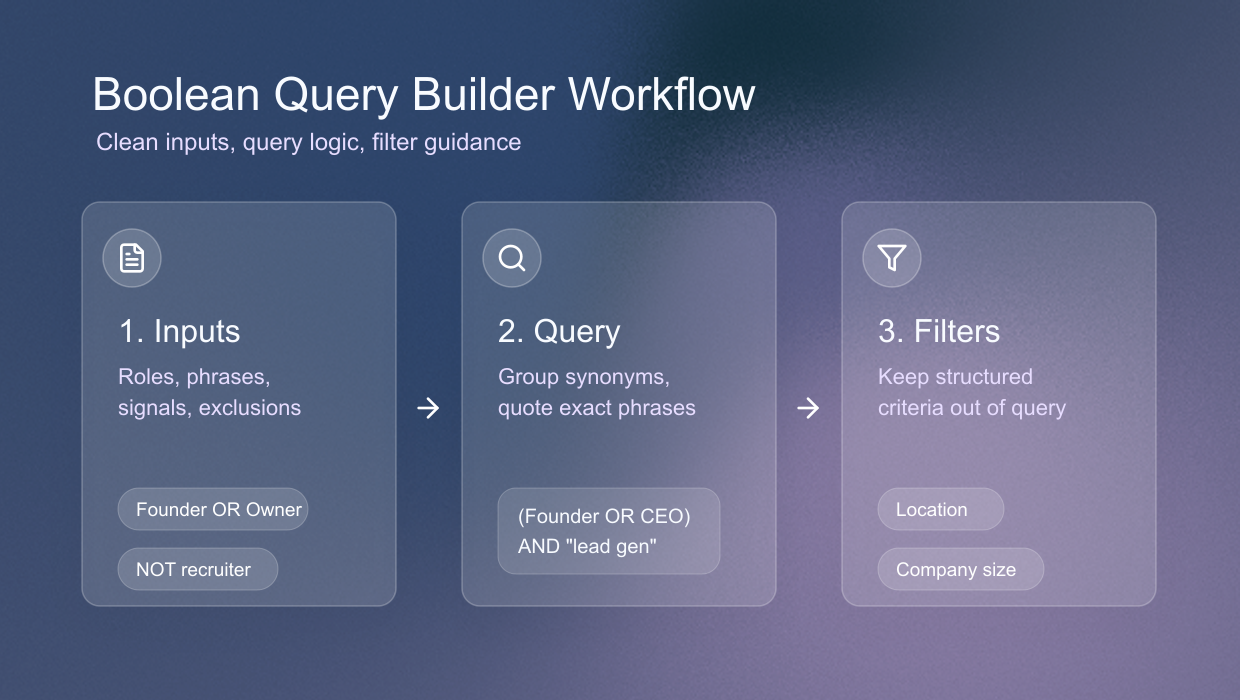
LinkedIn Boolean search is a way to combine words with simple logic so LinkedIn understands how terms relate to each other. Instead of typing a loose phrase like agency founder lead generation, you can use a boolean search in LinkedIn to tell the platform which terms are alternatives, which terms must appear together, and which noisy terms should be excluded.
In practical terms, boolean search for LinkedIn helps you turn messy prospecting language into a structured query. That query can then work beside LinkedIn's native filters instead of trying to replace them.
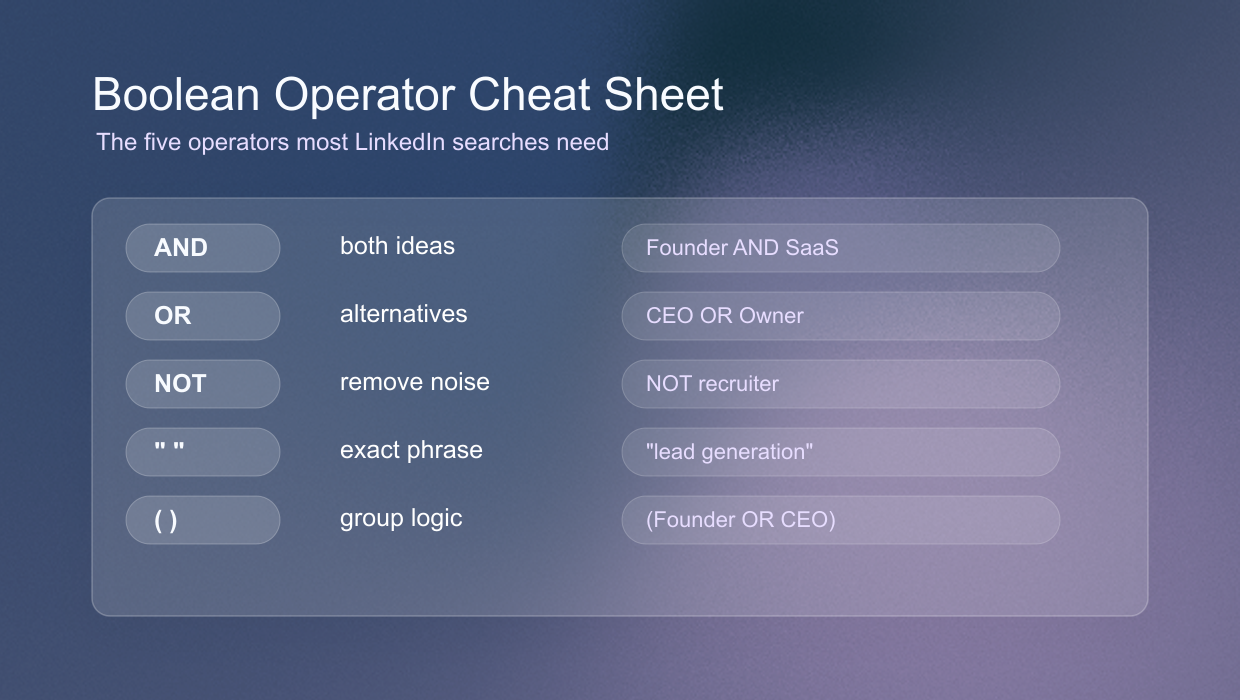
The main operators are AND, OR, NOT, quotation marks, and parentheses. AND means both ideas should be present. OR means any alternative can match. NOT removes a term from the results.
Quotation marks keep exact phrases together, such as "Managing Director" or "lead generation". Parentheses group related logic, such as (Founder OR Owner OR CEO) AND (agency OR consultancy).
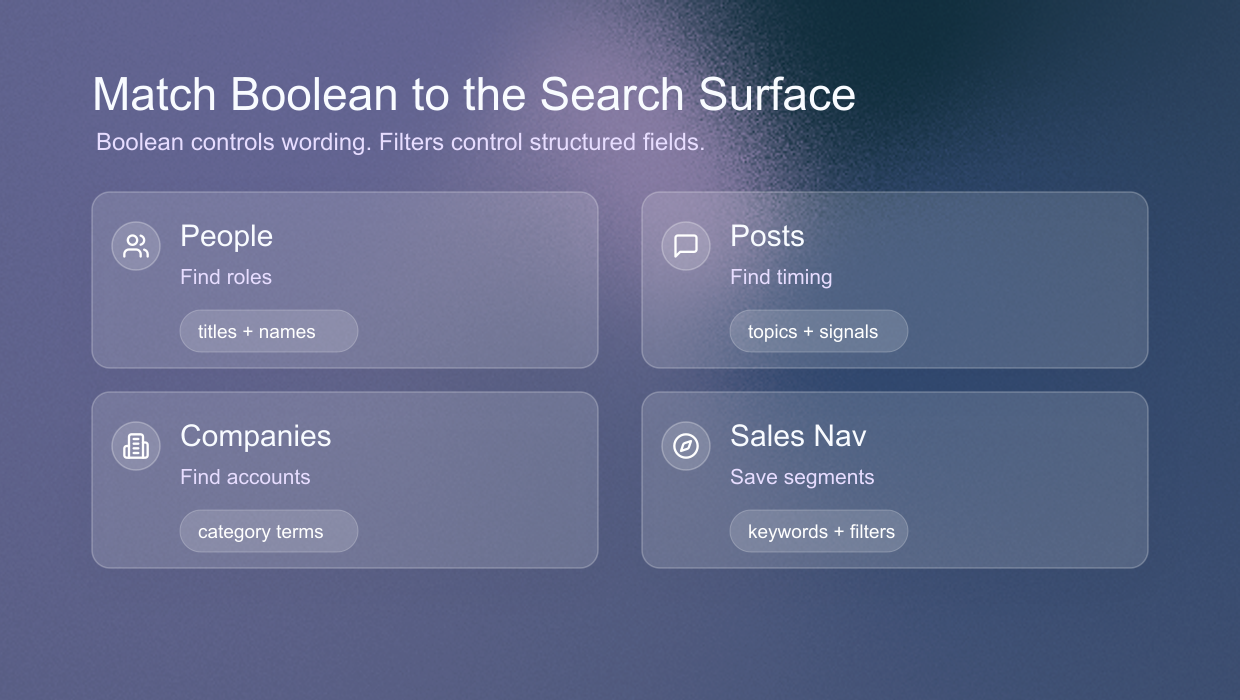
That logic can be useful in People, Posts, and Companies search, but it does not replace filters. Boolean controls wording. Filters control structured fields. The search works best when both parts are used deliberately.
Match Boolean to the Search Surface
Boolean search is best for text LinkedIn can actually read in the current search surface. In People search, that includes visible profile fields such as first name, last name, headline or title, location, company names, and school or education terms. In Posts and Companies search, the same operators work, but they match different text surfaces.
If you want agency owners in Germany who mention lead generation, Germany can stay in the People Boolean query because location appears in the profile preview. German profile language, industry, connection degree, company size, and post timing should stay in filters.
- Use People Boolean for name, title, location, company, school, exact phrases, profile keywords, and repeated false positives.
- Use filters for profile language, industry, company size, date posted, content type, connection degree, service categories, and author or company filters.
- Save the Boolean string together with the filters you used. A query without its filter context is only half of the search.
LinkedIn Boolean Search by Search Type
The same Boolean operators can help in every search area, but the outcome changes. People search finds profiles, Posts search finds conversations, and Companies search finds accounts. Sales Navigator helps you save stronger lead and account searches.
Choose the surface by the question you need to answer next. Start with Companies when you are mapping accounts. Use People when you need decision makers. Use Posts when you need timing, language, or a reason to reach out.
People Search for Buyers and Operators
People search is the right place to find founders, owners, CEOs, partners, operators, sales leaders, RevOps profiles, consultants, and other individual prospects. Boolean is useful here because people write their roles in inconsistent ways. A small business owner may call themselves Founder, Owner, CEO, Managing Director, Partner, Principal, or Co-Founder. LinkedIn filters cannot always understand that these are variations of the same buying role.
Use Boolean for visible profile fields that help identify the right person, such as name, title, location, company, school, and context language. A useful people query might be ("agency owner" OR "agency founder") AND ("lead generation" OR "growth marketing") AND Germany NOT recruiter.
Then use People filters for connection degree, industries, profile languages, service categories, followers of, and connections of. If you are using the free LinkedIn search interface, ignore premium-only filters such as actively hiring when building a free workflow.
People search is strongest when you already have a rough ICP. It is less useful when you only know an account category but not the buyer. In that case, start with Companies, build a target account list, then move into People search to find the relevant people inside those accounts.
Posts Search for Timely Outreach Angles
Posts search is a different use case. You are not searching for a profile record first. You are searching for content.
Boolean can help you find posts about a pain point, buying trigger, competitor, category, or initiative. That makes Posts useful when you need warmer outreach context instead of another cold list.
In Posts search, the filters control the content stream. Use Top Match or Latest, Date posted, Content type, From member, From company, Mentioning member, and Author industry for timing and source.
Use Boolean for the topic itself. A search like ("building outbound" OR "growing pipeline" OR "lead generation") can reveal people discussing a growth problem. The Date posted filter then decides whether you care about the past day, week, or month.
Posts search should not replace People search. It answers a different question. People search asks who fits the persona. Posts search asks who is talking about the topic now.
Companies Search Before People
Companies search is useful when your first question is about accounts, not individuals. If you want software companies in a region, agencies of a certain size, manufacturers in a category, or consulting firms with open roles, start with Companies. Boolean can help with company names, descriptions, category wording, and niche terms, but the filters should carry the account structure.
The Companies filters from the normal LinkedIn search experience include locations, industry, company size, job listings on LinkedIn, and connections. These filters are exactly where account-level criteria belong. Do not write 11-50 employees or North America into the Boolean string if the Companies filter can do that work. Instead, use the query for terms that may appear in company names or descriptions, such as SaaS, automation, managed services, ecommerce, cybersecurity, or growth marketing.
After Companies search gives you an account list, switch back to People search. The company page may tell you the account exists, but the pipeline work starts when you find the right person, qualify the account, and decide whether there is enough context to reach out.
Sales Navigator Boolean With Lead Filters
Sales Navigator Boolean search is not a different Boolean language. It is a richer search interface around the same basic idea. Use Boolean for text logic and use filters for structured criteria.
If you already use Sales Navigator, Boolean is useful in keyword-style fields because it can group title variations, category language, product terms, pains, and exclusions before the advanced filters narrow the list.
A Sales Navigator lead search might use a keyword query such as (Founder OR Owner OR CEO OR "Managing Director") AND ("lead generation" OR outbound OR pipeline) NOT recruiter. Then the Sales Navigator filters should carry structured criteria such as geography, company headcount, industry, seniority level, function, relationship, company growth, or saved account lists. For account search, use Boolean for account category language and let account filters handle headcount, location, industry, and growth signals.
The advantage is precision and repeatability. Free LinkedIn search is enough for a first search, but Sales Navigator becomes useful when you want to save searches, revisit segments, work from lead lists or account lists, and keep filters consistent over time.
When to Use People, Posts, Companies, or Sales Navigator
The simplest way to choose the right search type is to ask what you need next. Use People for a human being, Companies for account discovery, and Posts for timing or language. Use Sales Navigator when you need a repeatable workflow with deeper filters.
A practical founder workflow can start with Companies to find B2B agencies in Germany with 11-50 employees. Then use People to find founders and managing partners inside that segment.
Use Posts to check whether those people or companies discuss lead generation, outbound, hiring, AI automation, or pipeline. If you have Sales Navigator, save the strongest version as a lead or account search.
Do not force all of that into one Boolean string. Write one query for the search surface, then save the filter setup beside it. That gives you a repeatable LinkedIn prospecting workflow instead of a long query nobody wants to maintain.
LinkedIn Search Operators You Actually Need
LinkedIn Boolean search uses a small set of operators: AND, OR, NOT, quotation marks, and parentheses. LinkedIn's own help guidance recommends uppercase operators, quotation marks around exact phrases, and parentheses to group logic. Wildcards such as asterisks are not part of the reliable native LinkedIn workflow.
OR is for alternatives. Founder OR CEO OR Owner broadens the search to include several role words. AND is for required overlap. Founder AND SaaS asks for both ideas to appear.
NOT removes repeated noise, but it can hide good matches. Quotation marks keep phrases together, so "Head of Sales" behaves differently from three loose words. Parentheses keep groups readable, as in (Founder OR CEO OR Owner) AND (SaaS OR software).
The best queries are rarely the longest ones. They are the ones where every piece has a job. One group should usually describe the role, another group may describe the context, and a small NOT clause may remove repeated noise. If a query has five different ideas joined by AND, it often becomes too strict for LinkedIn's matching behavior.
LinkedIn Boolean Search Examples by Surface
People example - ("agency owner" OR "agency founder") AND ("lead generation" OR "growth marketing") AND Germany NOT recruiter. Use this in People search because keyword search can match visible profile fields. Then apply filters for profile language, industry, or connection degree.
Posts example - ("lead generation" OR outbound OR "cold email") AND (agency OR founder OR consultant). Use this in Posts search, then filter by Latest or by the past week if you want fresh conversation starters. Use Content type instead of adding videos, documents, or images to the query.
Companies example - (SaaS OR software OR automation) AND (B2B OR "go-to-market" OR RevOps). Use this in Companies search, then filter by location, industry, company size, job listings, or connections. Once you find relevant companies, move into People search.
Sales Navigator example - (Founder OR Owner OR CEO OR "Managing Director") AND ("lead generation" OR outbound OR pipeline) NOT recruiter. Use this in a lead search keyword field, then apply filters for geography, industry, headcount, seniority, function, relationship, or saved lists.
Common Mistakes That Make Boolean Search Worse
The biggest mistake is using Boolean as a replacement for LinkedIn's interface. If the interface has a clean filter, use it. Another common mistake is writing one query that tries to serve People, Posts, and Companies at the same time. That usually creates vague results because each search type has a different index and a different set of filters.
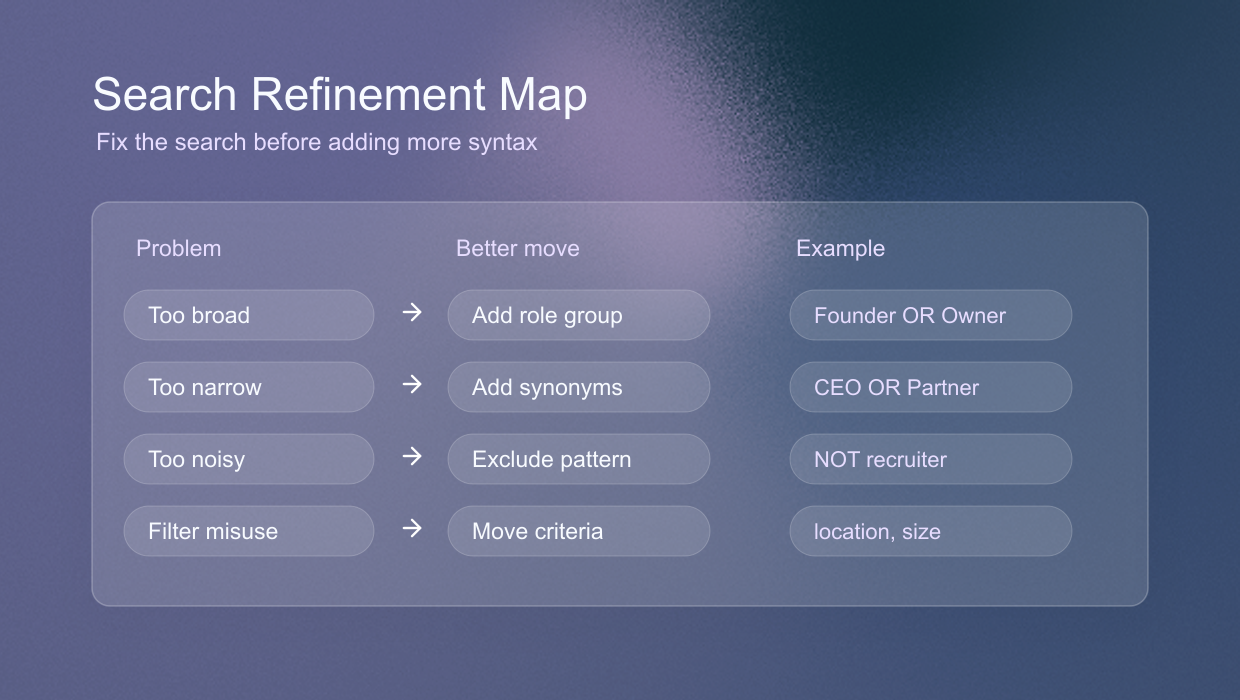
- Do not treat every LinkedIn filter as a Boolean rule. In People search, location, title, company, and school can be useful query terms; profile language, industry, company size, date posted, and content type should stay in filters.
- Do not start with a large NOT clause. Review results first, then exclude only repeated false positives.
- Do not copy recruiter templates blindly. Founder-led prospecting often needs broader owner language and fewer rigid title assumptions.
- Do not judge a query from the first five results. Review enough profiles, posts, or companies to see the pattern.
The query should stay understandable. A founder, assistant, or teammate should be able to read it and explain what each part does. If that is not possible, the search is probably too clever.
How to Refine a Search Without Making It Messy
Most Boolean searches improve through review, not through more syntax. Run the first version, scan a meaningful sample, and look for patterns. In People search, the pattern may be missing titles or noisy roles.
In Posts search, the issue may be the wrong content format or old discussions. In Companies search, it may be accounts that share a category word but do not match the account type you wanted.
Change one layer at a time. If People results are too broad, add one exact phrase or tighten the title group. If Posts results are too old, change the Date posted filter before the query.
If Companies results include the wrong market, try an Industry or Company size filter before adding more required keywords. This order shows whether the problem was language or structure.
Templates from competitor tools and old recruiter guides often fail because they treat the query as the whole search. They give you a long string, but they do not explain which search vertical it belongs to or which filters should carry the rest.
A useful LinkedIn Boolean generator should do the opposite. It should keep the string readable, separate filters from keywords, and help you decide whether you are looking for a person, a company, or a conversation.
A useful refinement note might keep the founder title group, remove one strict AND term, and keep Germany in the People query if it helps match visible locations. If you use Sales Navigator, the note should also say which lead or account filters to save.
A Better Workflow for Founders and Small Teams
Start with a short hypothesis. For example, agency owners in Germany who care about lead generation. Turn the language part into Boolean: (Founder OR Owner OR "Managing Director" OR Partner) AND ("lead generation" OR outbound OR "growth marketing").
Then decide which vertical fits the next question. People search finds the owners. Posts search finds recent conversations about the topic. Companies search finds agencies that may fit the account profile.
After running the first search, look at the first 20 to 30 results and write down what is wrong. If too many recruiters appear, add NOT recruiter. If too many junior profiles appear, tighten the title group.
If strong prospects use a phrase you did not expect, add that phrase with OR. Change one thing at a time so you know what improved the result.
Once the search works, save both the query and the filter setup. For example, save People search, Germany, German profile language, second-degree, and the final query. That small habit turns Boolean from a one-off trick into a repeatable prospecting asset.
From Boolean Search to Real Outreach
A Boolean string does not create pipeline by itself. It helps you find a more relevant starting point. The real value comes when you combine the search result with account fit, timing, and context.
If you found a person, check whether they have the authority or influence to care about your offer. If you found a company, check whether the account actually matches your ICP. If you found a post, check whether it gives you a relevant reason to start a conversation.
Good outreach usually comes from combining three signals, the right account, the right person, and the right moment.
That is why the best LinkedIn Boolean workflow is not just a string generator. It is a decision process. Use Boolean to control language, use LinkedIn filters to control structure, and use your own judgment to decide whether the result is worth contacting.
Frequently Asked Questions
Yes. Boolean can help in People, Posts, Companies, and Sales Navigator, but the job changes. People search finds profiles, Posts search finds conversations, Companies search finds accounts, and Sales Navigator helps you save repeatable lead or account searches with deeper filters. The same query should not be reused blindly.
Yes, in People search they can be useful because LinkedIn can match visible profile fields such as location, company, school, title, first name, and last name. Keep filter-only criteria such as profile language, industry, connection degree, company size, date posted, and content type in filters.
Use Posts search when you need recent conversations, pain points, competitor mentions, category discussions, or outreach context. Use date and content-type filters for timing and format.
Use Companies search when you are discovering accounts. Put account filters such as location, industry, company size, job listings, and connections into filters, then use Boolean for company description and category language.
Yes. LinkedIn supports core Boolean operators in native search: AND, OR, NOT, quotation marks, and parentheses. Use uppercase operators and avoid wildcards or Google X-Ray operators.
The query is often too long, missing quotes around phrases, using unsupported symbols, or trying to replace filters. Shorten the string, quote multi-word phrases, and move structured criteria into the right filters.